Form defines set of input fields for optional action dialog.
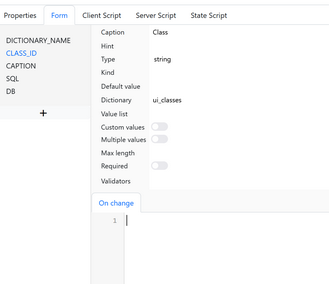
To add new field, press + button below field list and select table field, or select Custom.. and enter its name.
To delete a field hover it and click on red cross at right.
Fields can be reordered using drag and drop.
Fields have the following properties:
•Caption - displayed caption
•Hint - Hint displayed when hovering caption
•Type - field type: string, integer, number, date, datetime, daterange, boolean, text, file, image, html
•Kind - additional type setting. For example it may be switch for boolean type and sql for text.
•Default value - field default value
•Dictionary - dictionary for displaying values list. Dictionary may depend on another field, for example cities dictionary can display only cities from selected country:
cities(country)
Note that cities dictionary SQL should have :country parameter.
•Value list - explicit list of values separated by comma. Values can contain only id or id and name separated by vertical line: 1|left,2|right,3|top
•Custom values - allow user to non-dictionary value
•Multiple values - allow to select multiple values
•Max length -max value length
•Required - value is required
•Validators - validation rules for value (see Validators section).
•On change - javascript code executed when field is changed. Exanple:
this.form.SQL.CM.options.db = $(this).val();
Rich fields
Fields of certain types are called rich and displayed on separate tabs below common fields. These are:
•image - image selection and view
•html - rich text editor
•text with kind = sql, html, javascript